 KeePass Help Center KeePass Help Center
|
 KeePass Home | KeePass Home |
 Downloads | Downloads |
 Translations | Translations |
 Plugins | Plugins |
 Donate Donate  Help Center Home | Help Center Home |
 Forums | Forums |
 Awards | Awards |
 Links Links |
 |
Using Stored PasswordsHow to transfer passwords stored in KeePass to other applications. |
There are many different methods to transfer passwords stored in KeePass to other applications:
 Main Entry List
Depending on which field you double-click in the entry list of the main window, different actions are performed:
- Title field: open the entry editing dialog for this entry.
If you hold down the Shift key while double-clicking, the title is copied to the clipboard instead. - User name field: copy user name to the clipboard.
- Password field: copy password to the clipboard.
- URL field: open URL.
If you hold down the Shift key while double-clicking, the URL is copied to the clipboard instead. This behavior can be reversed by turning on the option 'Copy URLs to clipboard instead of opening them'. - Notes field: copy notes to the clipboard.
- Attachment field: [1.x] copy to clipboard, [2.x] open in internal editor / viewer.
- Other fields (like time and UUID fields): copy the contents of that field to the clipboard.
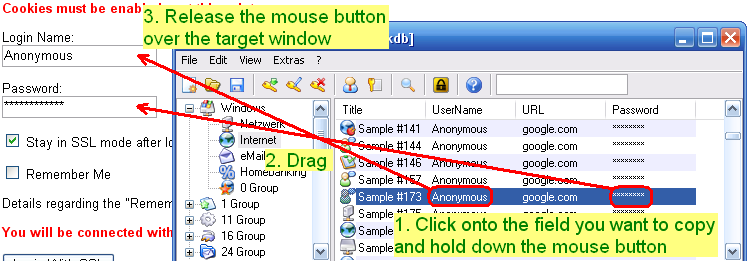
Drag&Drop
You can drag&drop all fields of KeePass entries into other windows:
 Auto-Type
Auto-Type is a powerful feature that sends simulated keypresses to other applications.
You can find more details about it here: Auto-Type documentation page.
Plugins
There are a lot of plugins available that integrate KeePass with other applications.
You can find these integration plugins on the plugins page.
